 VS Live Pro
App profissional multitrack para shows ao vivo, no smartphone ou tablet!
Criado por músicos, para músicos: o VS Live Pro é a solução profissional para usar VS e playbacks com confiança, no seu show ou na apresentação da sua banda.


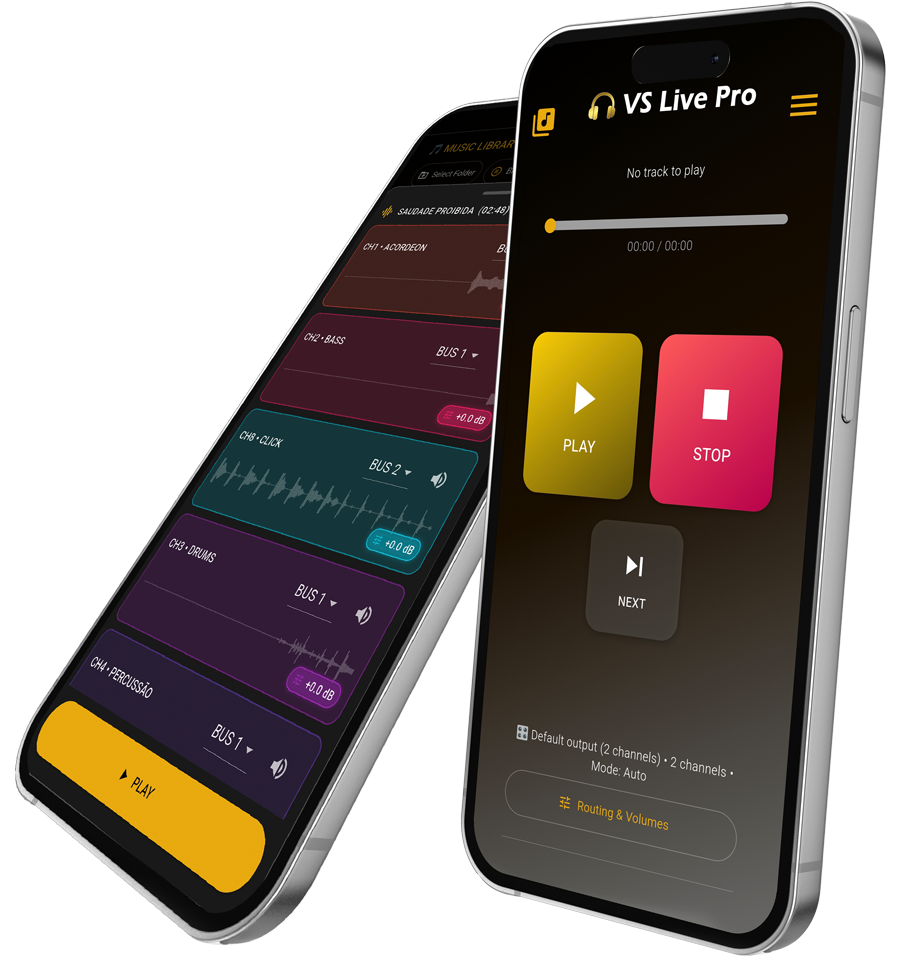
POR QUE USAR?
Entenda o VS Live Pro. O seu show na palma da sua mão!
No smartphone ou tablet
Um app simples e direto, cheio de recursos pensados exclusivamente para o palco — feito sob medida para o seu repertório ao vivo.
Multitrack até 8 canais
Reproduza seus stems em multitrack com até 8 canais, com roteamento e volumes independentes — do jeito que você precisa.
Controle total do show
Uma DAW de bolso, com recursos de gente grande, perfeita para comandar seus VS e playbacks no show.
Backup perfeito na estrada
Mesmo que você ou sua banda já use uma DAW e um computador, o VS Live Pro é o backup perfeito do seu show.
Setlists e PDFs na mão
Monte setlists, organize o repertório e tenha o PDF completo do show pronto pra consulta — tudo com uma interface otimizada para palco.
Profissional, sem anúncios
É um app profissional, por isso não tem anúncios. Considere fazer uma assinatura para apoiar o desenvolvimento contínuo.
Obtenha o aplicativo
Disponível para Android. Em breve para iOS (App Store).
Como funciona
Importe suas músicas (VS ou Playbacks)
Escolha a pasta onde estão seus VS's. O VS Live Pro detecta os canais e prepara tudo para o show.
Monte o setlist
Organize a ordem das músicas, adicione pausas programadas, defina blocos de repertório e salve diferentes shows dentro do app.
Ajuste volumes e direcione os canais
Antes do show ou na passagem de som, ajuste o volume das tracks (se necessário), escolha o BUS/canal de saída e deixe tudo no ponto. O app mantém salvas todas as configurações.
Gere o PDF automático
Com um toque, o app gera um PDF completo com o repertório, tempos e informações do show, pronto para enviar à banda, produção ou cliente.
Aperte play e deixe o app trabalhar
Durante o show, o VS Live Pro cuida da fila, pausa automaticamente onde tem pausa programada. Você só precisa apertar play e focar em tocar e cantar.
Recursos
Dúvidas frequentes sobre o VS Live Pro
Tire as dúvidas mais comuns e saiba como o VS Live Pro trabalha no VS L/R e Multitrack. Conheça os modos e saiba como utilizá-los no app. Vou explicar como se fosse você organizando suas músicas na pasta:
Stereo Split (L/R)
- O QUE É: VS e click estão na mesma faixa de áudio, um em cada lado do fone/cabo:
- COMO É O ARQUIVO: É apenas um arquivo de áudio, por exemplo:
NOME DA MÚSICA.mp3
- QUANDO USAR: Quando você já tem o VS pronto no formato “L/R”.
Ideal pra quem exporta tudo direto da DAW em um arquivo só.
Multitrack (até 8 canais)
- O QUE É: VS em tracks separadas:
- COMO SÃO OS ARQUIVOS: Você deve colocar as faixas com o mesmo nome, por exemplo:
NOME DA MÚSICA (CLICK).mp3
NOME DA MÚSICA (KEYS).mp3
NOME DA MÚSICA (VIOLÃO).mp3
NOME DA MÚSICA (PERCUSSÃO).mp3
Você precisa escrever as faixas com o mesmo nome e o instrumento/click entre parênteses. O app entende que esses arquivos pertencem à mesma música e junta tudo.
- QUANDO USAR: Quando você prefere ter controle de todos os canais separadamente.
Qual a diferença entre "mp3" e "wav"? Qual extensão devo usar?
O VS Live Pro aceita os dois formatos — MP3 e WAV — e ambos funcionam normalmente.
A diferença principal está na compressão: o WAV é um áudio “cru” (sem compressão), então costuma ter qualidade máxima, porém ocupa mais espaço no armazenamento.
Já o MP3 é um arquivo compactado, mais leve para armazenar, mas precisa ser decodificado durante a reprodução, o que exige mais processamento do dispositivo.
Em projetos com muitas tracks tocando ao mesmo tempo, o MP3 exigirá mais.
Qual a diferença do plano Free para o Pro?
O plano Free serve para testar o fluxo do app com limitações de músicas e recursos. O plano Pro libera todos os recursos avançados: 8 canais reais, PDFs completos, controle de volume independente por canal e muito mais.
Consigo usar em mais de um dispositivo?
Sim. Há plano Pro para 1 dispositivo e plano Pro para até 3 dispositivos na mesma conta. Assim a banda pode ter um aparelho reserva ou compartilhar entre músicos.
O app roda em segundo plano?
Não. O aplicativo precisa estar aberto na tela no período de execução, pois o sistema operacional dos dispositivos diminui o processamento quando o aplicativo sai de foco (minimizado ou tela apagada). Isso pode comprometer o funcionamento, fazendo com que a música toque picotada — principalmente em multitracks. Dessa forma, foi desenvolvido para que a execução em segundo plano seja pausada automaticamente, voltando a ser reproduzida normalmente quando estiver em primeiro plano.
Tem anúncios dentro do app?
Não. O VS Live Pro é uma ferramenta de trabalho e não exibe propagandas invasivas. O sustento do projeto vem das assinaturas, justamente para manter o foco em quem usa o app no palco.